

One of the many really special things about USB HID class is that it is completely self describing: a properly designed HID device tells the PC everything about itself, including a complete description of every data item that it can send or receive: how big the data item is, what direction it can travel (always In to the PC, always Out of the PC, or Feature items that can go in both directions). A USB HID device even tells the PC what each data item is used for, using properties called Usage Pages and Usage IDs.
As a designer, you probably start off your project having at least some idea of what sort of data you want to send between your peripheral device and the PC. That's a great place to start, because HIDmaker FS gives you a graphical tool called the Visual Data Designer to help you tell HIDmaker FS all about your data.
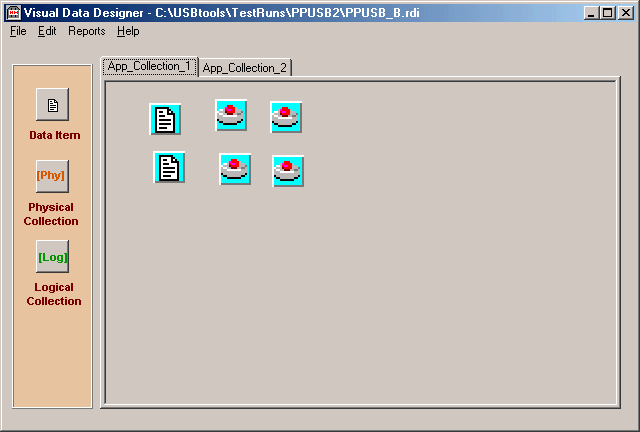
The Visual Data Designer helps you to:
- declare all the data items that your project is going to use,
- indicate the direction that each item is going to (Input, Output, or Feature)
- give each data item a name that is meaningful to you,
- give each data item a Usage Page and Usage ID (select from over 1600 standardized choices, or select a Vendor Defined usage), and
- easily describe each item in the exhaustive detail that the PC needs: its size, and many other properties
You use the Visual Data Designer like a drag and drop graphical sketchpad, to create the data items that will be sent over the USB between the PC and your USB HID peripheral device. Just select one of the items in the palette on the left, and click on the drawing area to place the item there. This is how you add another item to your project.
Once you have dropped a data item icon onto the drawing area, you then double click on the icon to edit its properties.
As you define your data items, you also set their properties, like size in bits, whether the item represents a single piece of data or an array, direction of travel (to or from the PC host, item name, what the item is used for, and so on.
Visual Data Designer provides many tools to make this process as easy as we can make it:
- Just double click on a data item to set its properties with simple dialog box
- Copy / Paste operations help you create more variables even faster
- Printable Reports let you document your work, and see how close you are to being finished.
And if you want to "kick it up a notch," download our free guide to the tips, techniques, strategies, and mind set that will turbo charge your USB development!
Next: Choose Your Compilers >>
Quickly make CUSTOM, ready to compile and run USB HID class source code written for YOUR FAVORITE COMPILERS, MATCHED for both PC and PIC device at the same time, that sends data that YOU defined.
Now you can also get an "unfair advantage" over your competitors, with 16-bit and 32-bit USB PIC devices, as well as 8-bit USB PICs, with new HIDmaker 32. Gets your USB HID project running, and communicating YOUR custom data, in as little as 10 minutes! Pays for itself in 1 day !
NEW! 2 Versions -- See which one is right for YOU :
Learn about new HIDmaker 32 for 32-bit, 16-bit, and 8-bit USB Processors
Learn about new Enhanced HIDmakerFS 2 for 8-bit USB PIC Processors