

Now, you’re ready to test.
Plug the peripheral device into a USB cable connected to the device, and check with Control Panel to verify that the device enumerates properly. Once that happens, you are ready to run the PC-side application. The code that HIDmaker FS generates will create some fixed “dummy” data (with values you specified using Visual Data Designer), in a section of the code that is clearly marked by comments as being there for test purposes only. The PC-side application is a true GUI program that will allow you to send this dummy data back and forth between the PC and the USB HID peripheral device, to verify that the USB connection works.
Running the PC Side Program
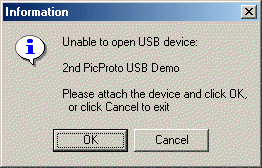
When you compile and run the PC side program that HIDmaker generates, it tries to find and open the specific USB HID device that you specified in your design. If this device has not been connected to your PC, the program will display the following dialog box:
If, and only if, you connect the USB Human Interface Device that matches your HIDmaker project's design, the generated PC side program will show its main window:
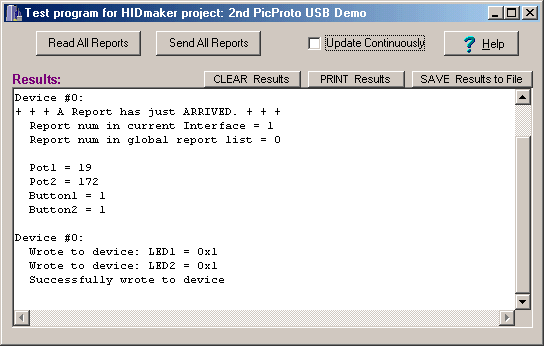
The PC side programs generated by HIDmaker FS are real Windows GUI programs. Regardless of the PC side programming language(s) you choose when you generate code for your project, the compiled program from each language looks like the screen shot above when you run it. The main differences appear in the source code.
Next: Step 8: "Personalize" Your USB Code >>
Quickly make CUSTOM, ready to compile and run USB HID class source code written for YOUR FAVORITE COMPILERS, MATCHED for both PC and PIC device at the same time, that sends data that YOU defined.
Now you can also get an "unfair advantage" over your competitors, with 16-bit and 32-bit USB PIC devices, as well as 8-bit USB PICs, with new HIDmaker 32. Gets your USB HID project running, and communicating YOUR custom data, in as little as 10 minutes! Pays for itself in 1 day!
NEW! 2 Versions -- See which one is right for YOU :
Learn about new HIDmaker 32 for 32-bit, 16-bit, and 8-bit USB Processors
Learn about new Enhanced HIDmakerFS 2 for 8-bit USB PIC Processors